Safari Player
In a world of highly available, on-demand streaming, it is not always ideal to provide a downloaded media file to enjoy FunPlayer.
Having the option to watch content from a browser and FunPlayer to be video-aware would be convenient.
The Safari extension solves this by tracking a video of your choosing and bridges across important video events such as play/pause and the video time that FunPlayer needs to do it’s job synchronizing playback to devices.
Below you’ll see how the Safari extension works and how to select a video to track.
Setting up the Extension
Section titled “Setting up the Extension”The Safari extension is bundled with FunPlayer like any other macOS app that has an extension. To configure the extension:
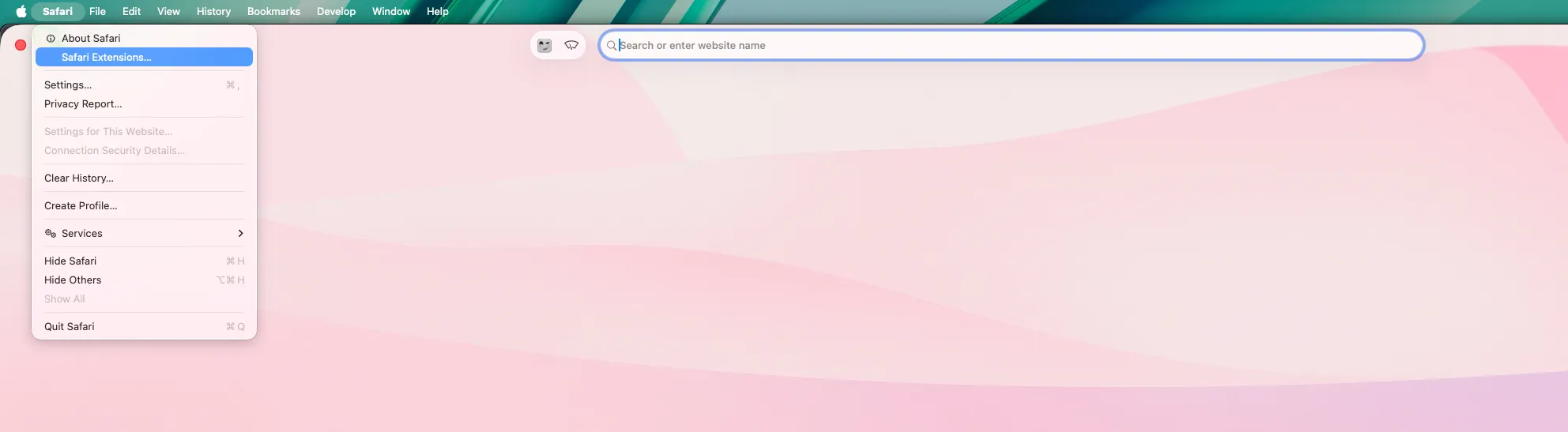
- From the top menu bar, Safari -> Safari Extensions
- Make sure the FunPlayer extension is enabled.
- Configure the hotkeys available.
FunPlayer video picker overlayis a hotkey shortcut to trigger the video picker overlay.FunPlayeris a hotkey shortcut to trigger the popup.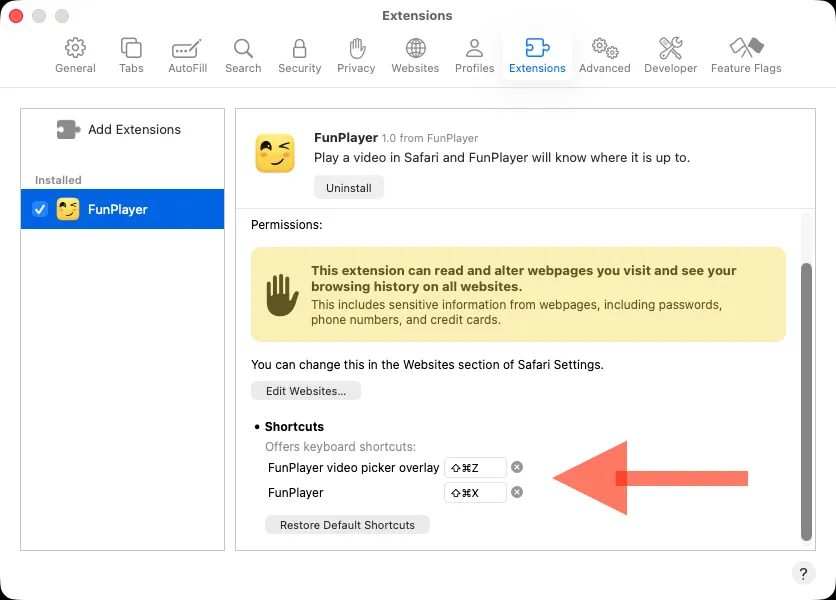
Using the Extension
Section titled “Using the Extension”The extension has two main concepts.
-
The popup displays the video(s) being tracked. At the time of writing this, we strongly suggest tracking only one video at a time, otherwise FunPlayer will be processing events from both videos.
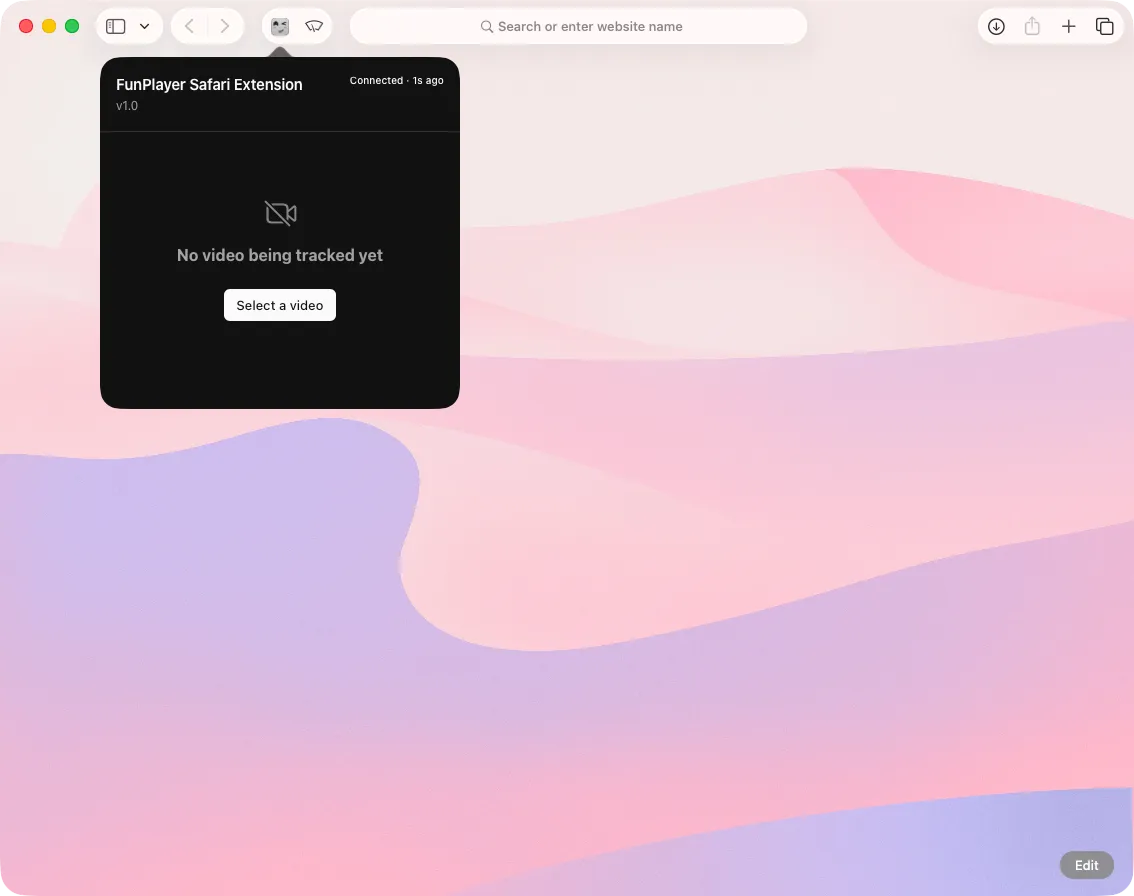
-
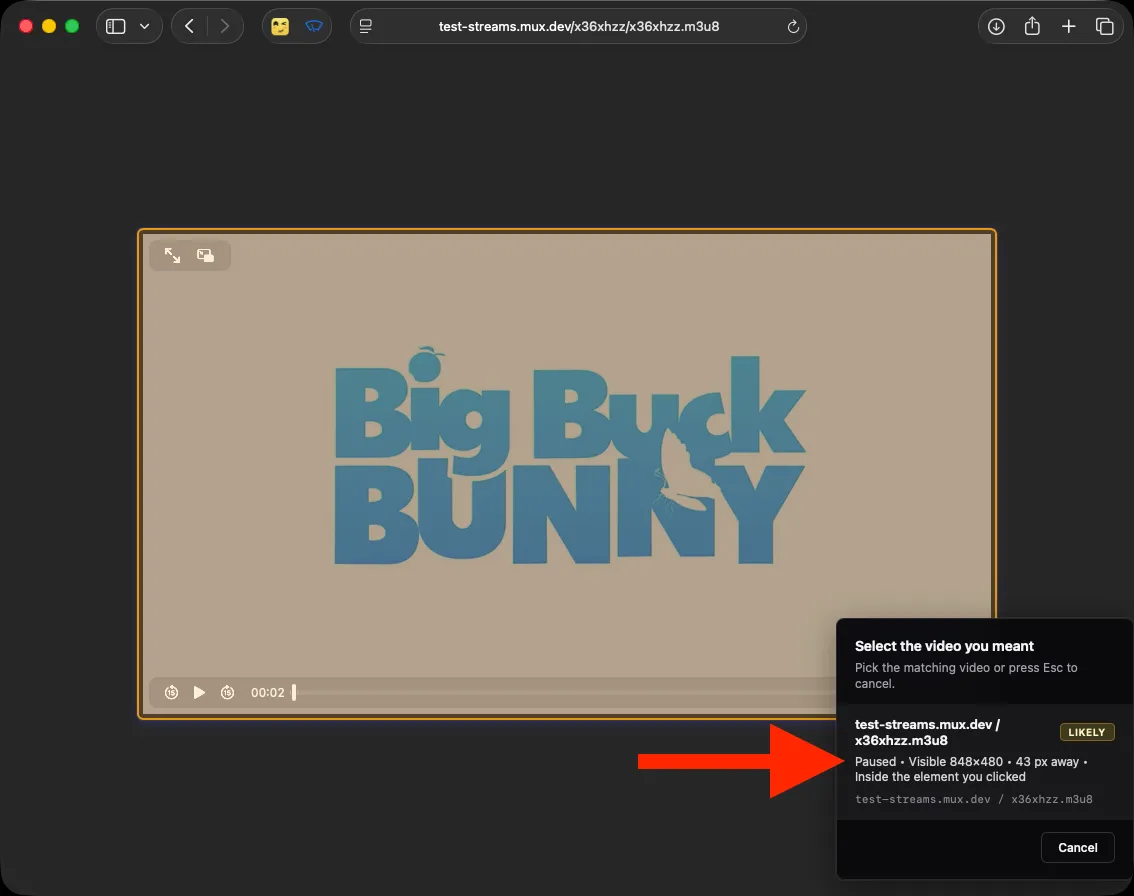
The video picker overlay is the second concept. It draws a yellow box on the element that your mouse is hovering over. It can be triggered by the popup
Select a videobutton, or via the hotkey. See below’s example where the yellow box is visible when selecting a video.
Picking a video
Section titled “Picking a video”-
Navigate to a page that has a video displayed and trigger the video picker overlay. This can be done via pressing the extension’s icon and pressing
Select a videoor via the hotkey.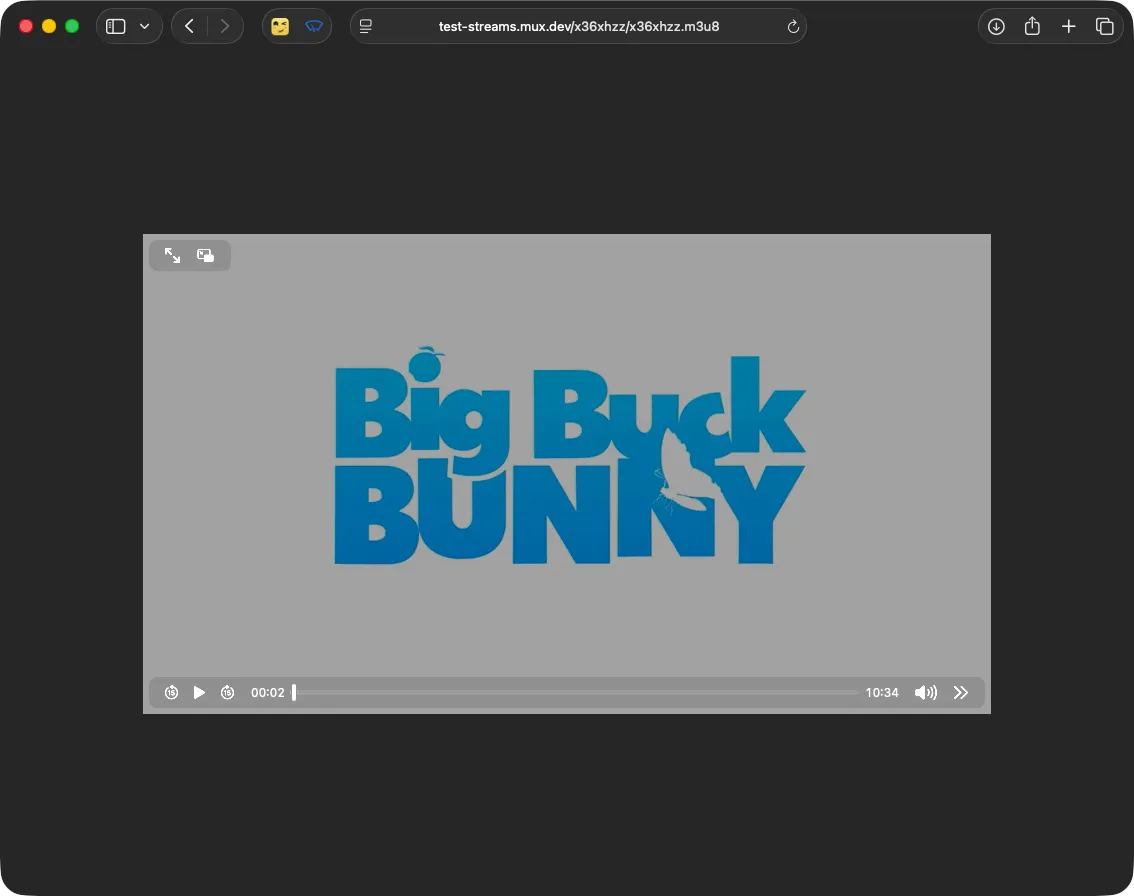
-
Once the video picker overlay is triggered, position your mouse over the video element, a yellow box should be covering the video element, then click.

-
If you pressed too far away from a video such that the extension has trouble identifying the video you wanted tracked, a dialogue will be presented for you to clarify, click on the relevant entry for the video you are after.
-
The yellow box should disappear and a red badge showing the number of videos being tracked should be displayed. Opening the popup will show the video being tracked. Clicking the
Clear allbutton will clear all videos being tracked.Open tabis useful to jump back to the tab in Safari where the video lives if you are across tabs.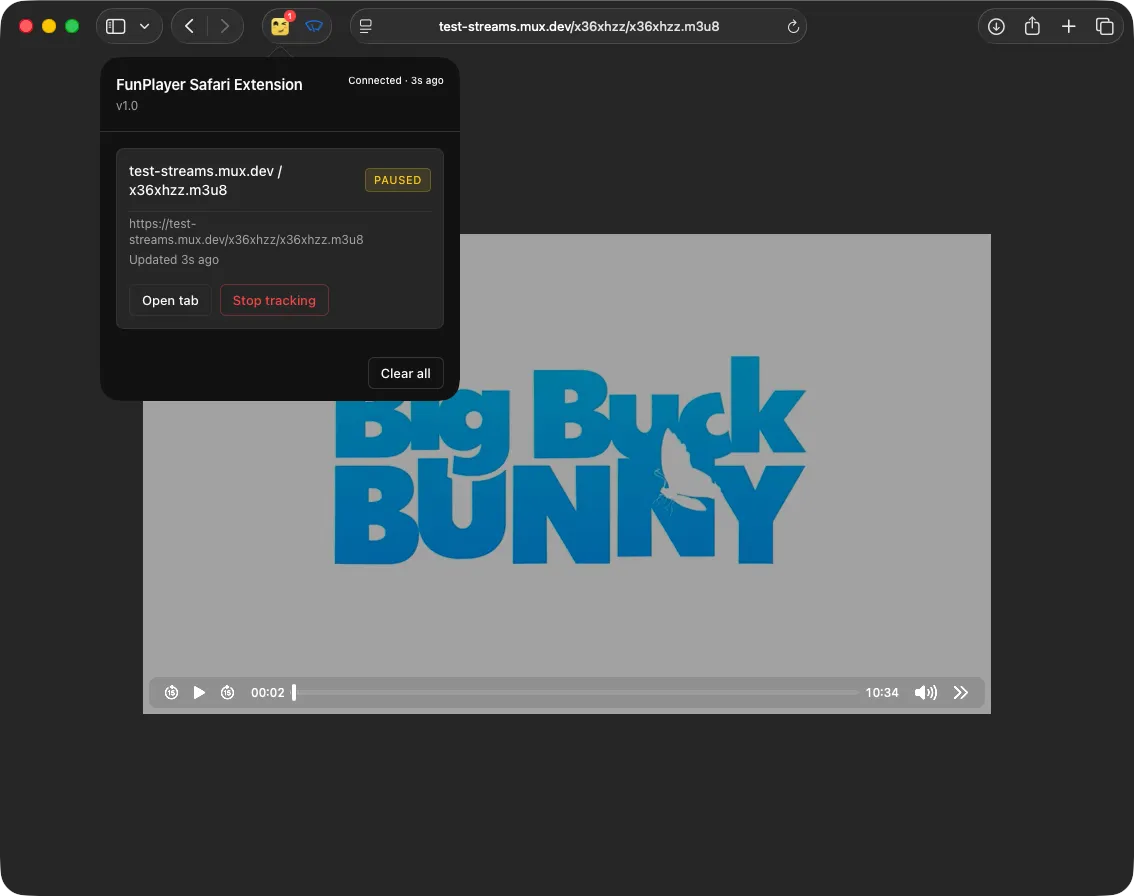
-
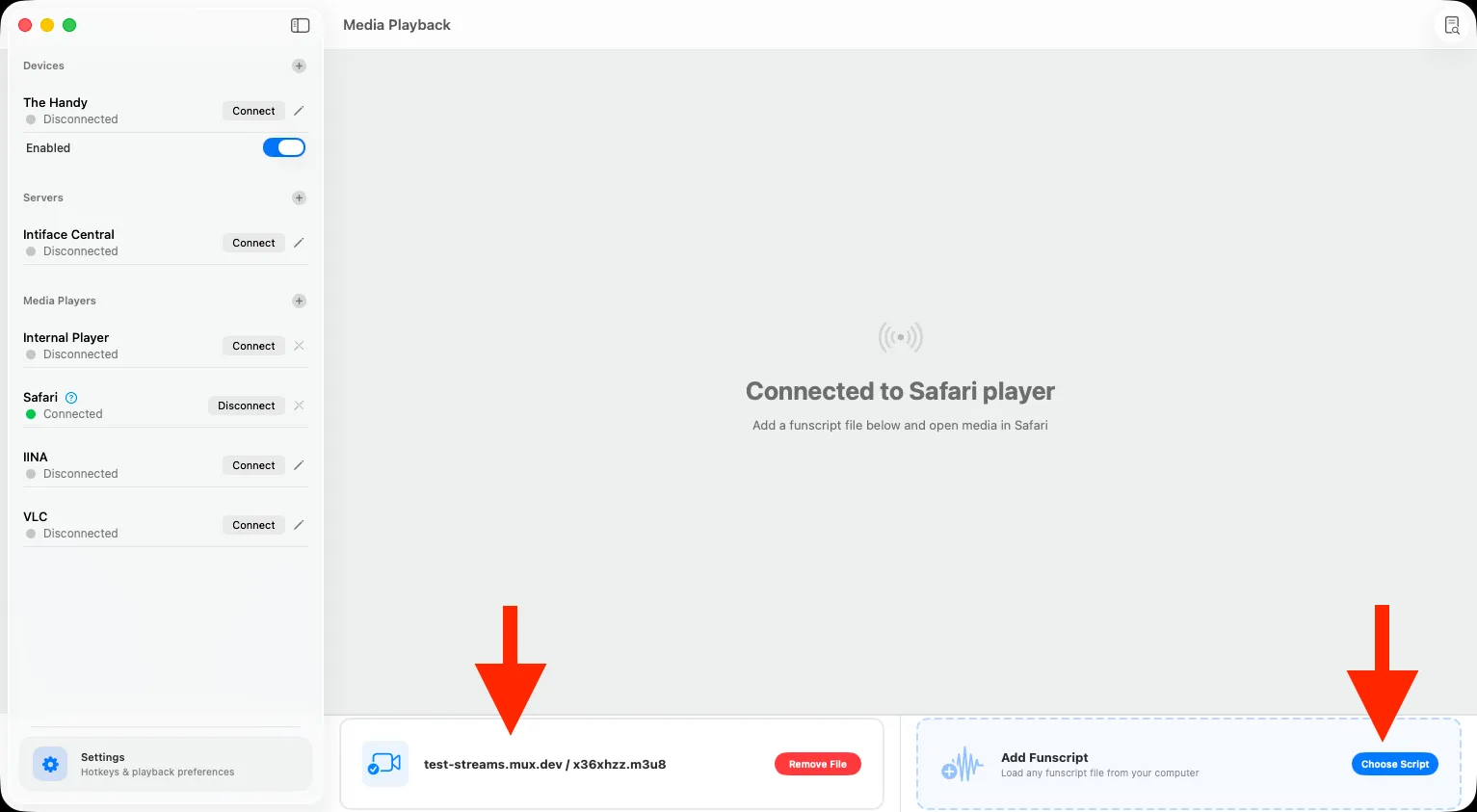
That’s it, when a video is being tracked, and the app is connected to the extension, you should see the video title displayed in the app.
Don’t forget to select a funscript file in the FunPlayer app relevant to the video you are playing.
Gotchas
Section titled “Gotchas”-
If you connect FunPlayer to Safari then idle Safari for too long, Safari could sleep the extension, FunPlayer will display an error and hint on what to do for the usual error of inactivity. For cases of inactivity, simply click the extension popup to wake the extension up again and press
Retry Connectin FunPlayer. -
The Safari extension hooks into the HTML
<video>element. Not every website uses that. Some, for example, wrap their video player in an<iframe>. If the<video>element is not rendered in the HTML, the extension will simply be unable to find it until we improve the extension to support other types of HTML elements.