T-Code Serial Devices
FunPlayer supports T-Code devices. At the time of writing this, only the linear axis is supported, for now.
Hardware Setup
Section titled “Hardware Setup”- Use a data-capable USB cable. A power-only cable won’t work.
- It is HIGHLY RECOMMENDED that the USB cable is plugged directly into your Mac. Using a USB hub may lead to heavy device twitching as the signal is not clear. We have personally experienced this jitter when connecting via a USB hub.
Add the Device
Section titled “Add the Device”-
In the Devices section, click the plus icon.
-
Choose T-Code (USB).
-
Provide:
- Name – Choose any name you like.
- Serial Path –
In most cases FunPlayer will automatically detect your T-Code device in the dropdown under the header
Recommendedso you do not need to manually provide the path to port. TheRecommendedheader in the dropdown is only visible if there is one or more good match.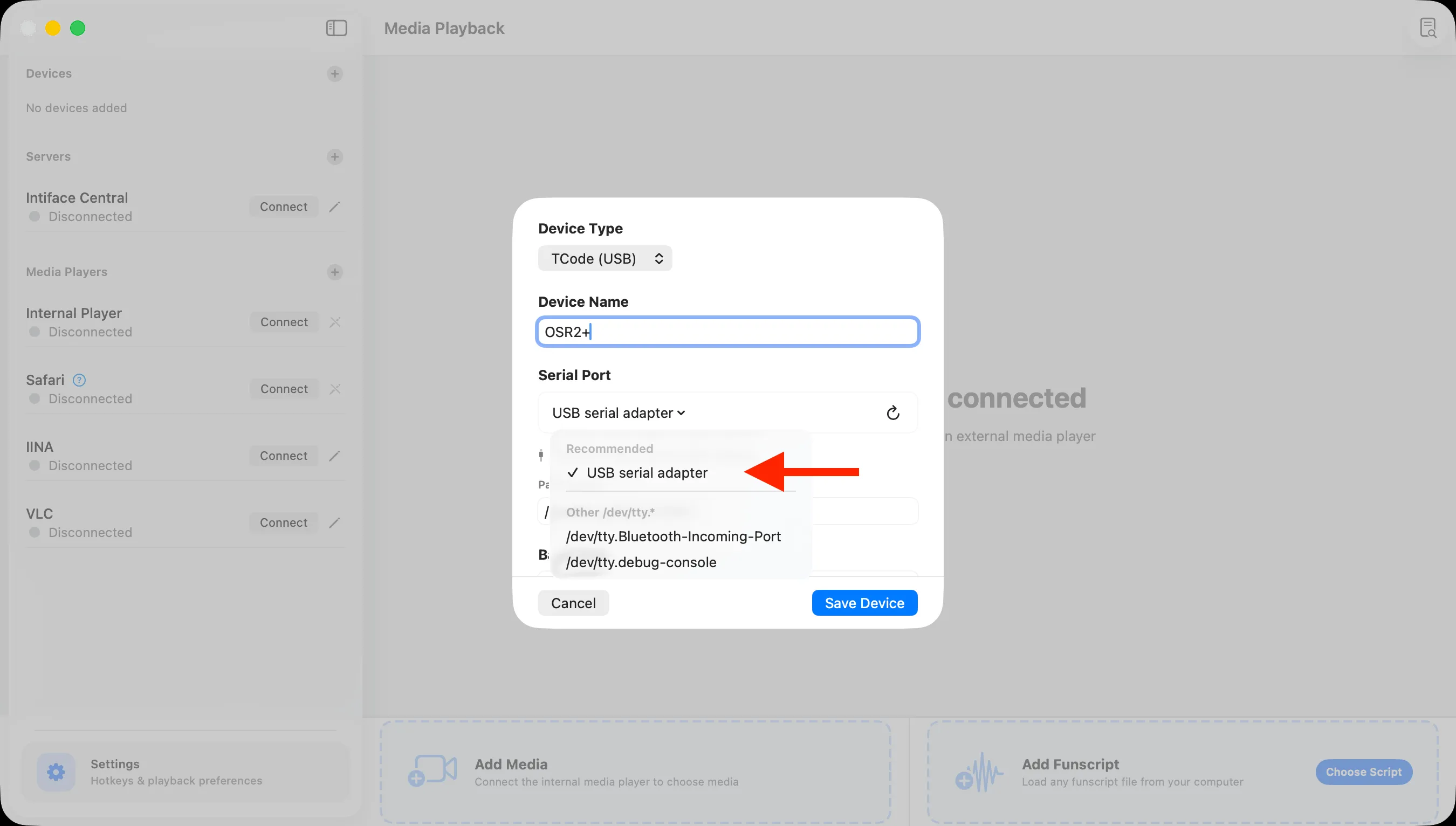
- Baud Rate – Defaults to 115200. It’s best to leave this as-is unless you know what you are doing.
-
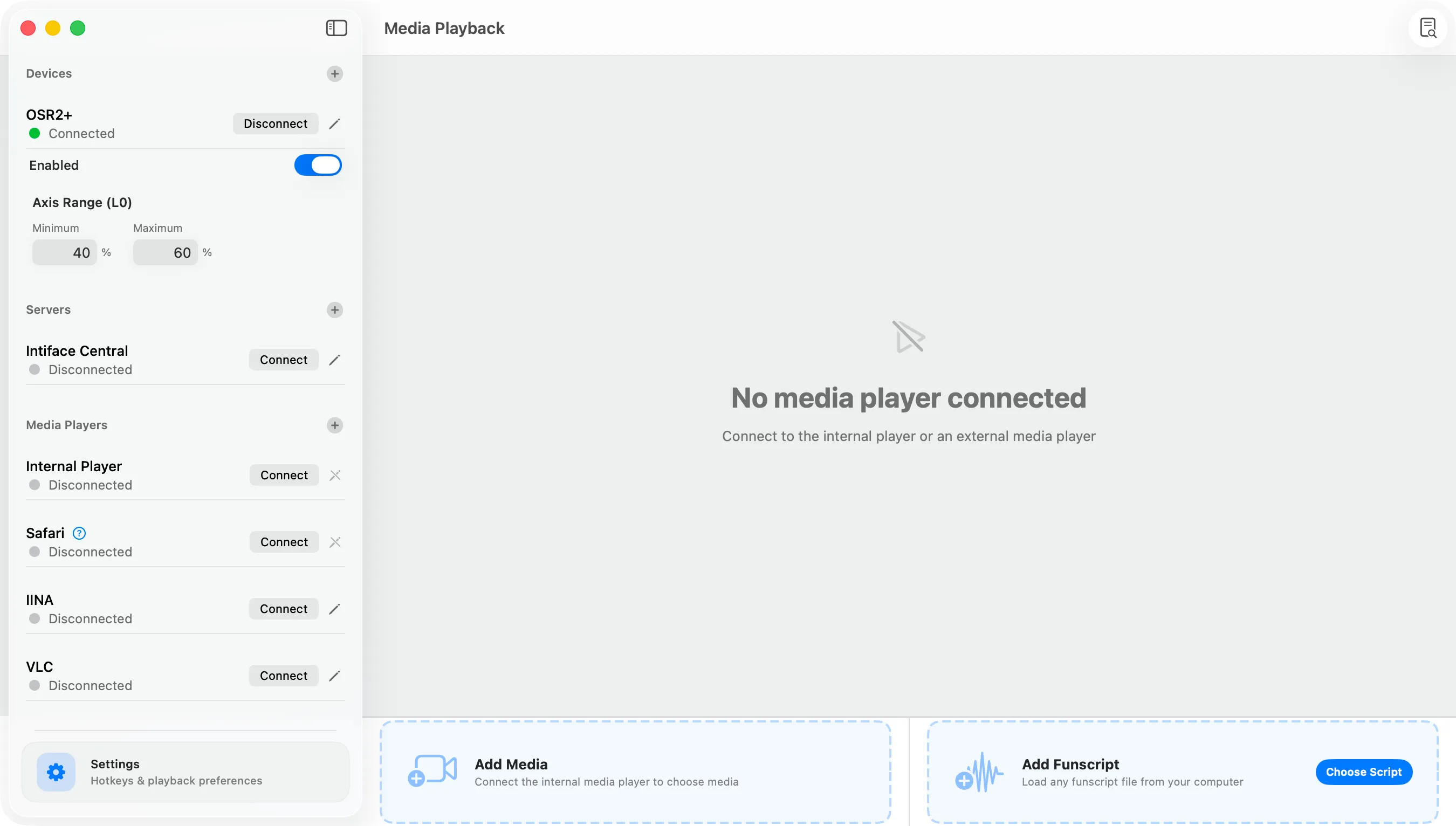
Save and connect. FunPlayer will try to open the path specified and run a version handshake. Expect the status badge to flip to Connected or Retry Connect if handshake times out. It can happen with some slower boards on first cold connect.
-
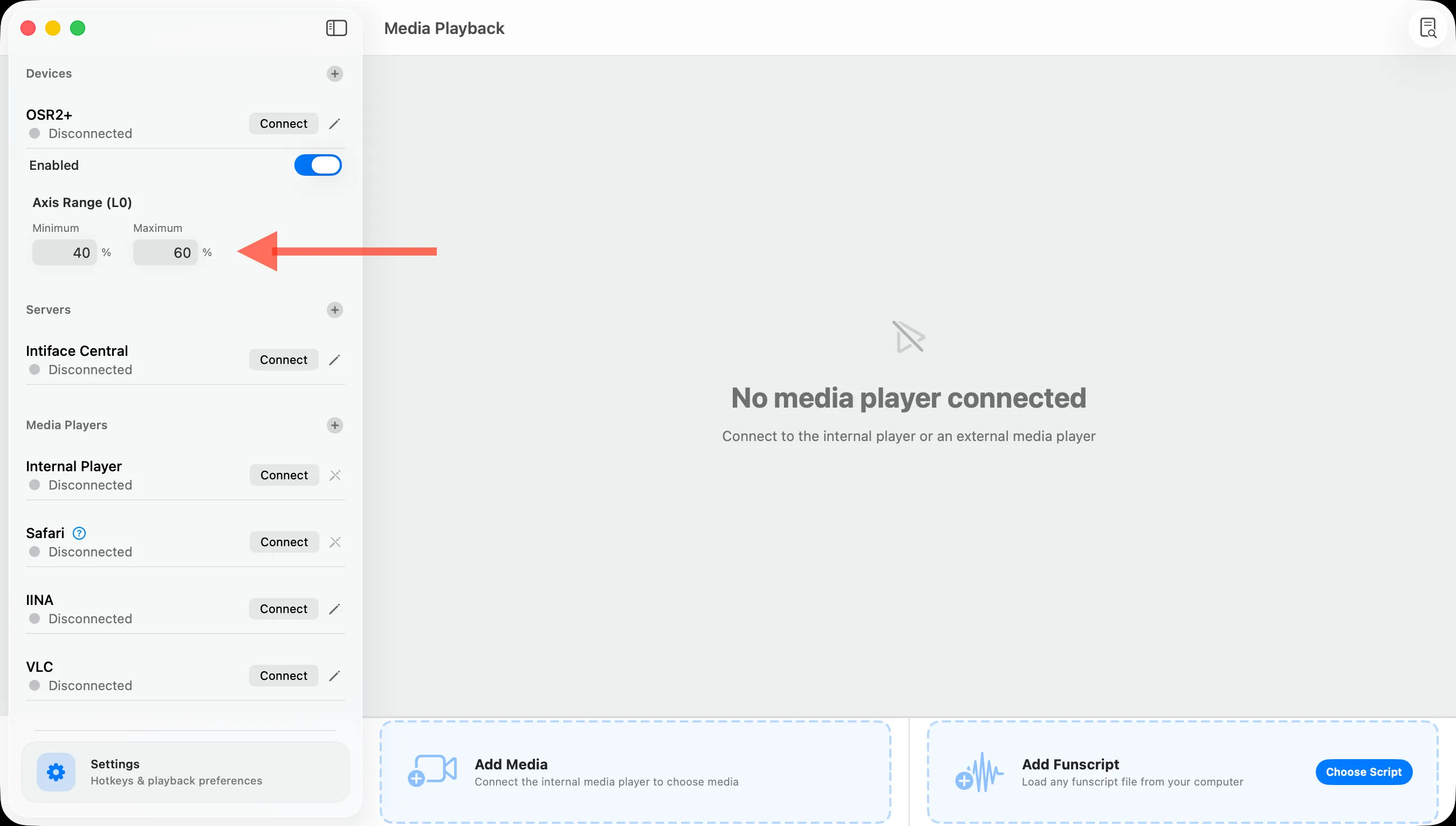
Adjust Min/Max range. By default, FunPlayer sets the min and max range between 40% and 60% for safety when a device is first added.
This is done to reduce the chances of something unexpected and potentially unsafe happening, especially if playback is ongoing.
The min and max range is between the 0% to 100% that your device can actuate on. Feel free to adjust to your liking.
Playing media
Section titled “Playing media”- Be connected to a media player, load a funscript and hit play.